One Point

- Setting up Shipment for One Point
- Possibility of connecting branches One Point and One Box services in one Shipment.
- Automatic setup of the carrier's network of pick-up points - help
- One by Allegro widget
- Manual export of orders for label printing - help guide
What can the add-on do?
After pressing the "Add Add-on" button, the system in your e-shop will automatically create new Shipment named "One Point" and preset some Shipment parameters to suit the given type of service (Branches, Restrictions, and Tracking URL). Then you adjust this new Shipment according to your needs and activate it.
The settings allow combining One Point and One Box in one Shipment, or having them separately.
You can find the help guide for Shipment settings here.
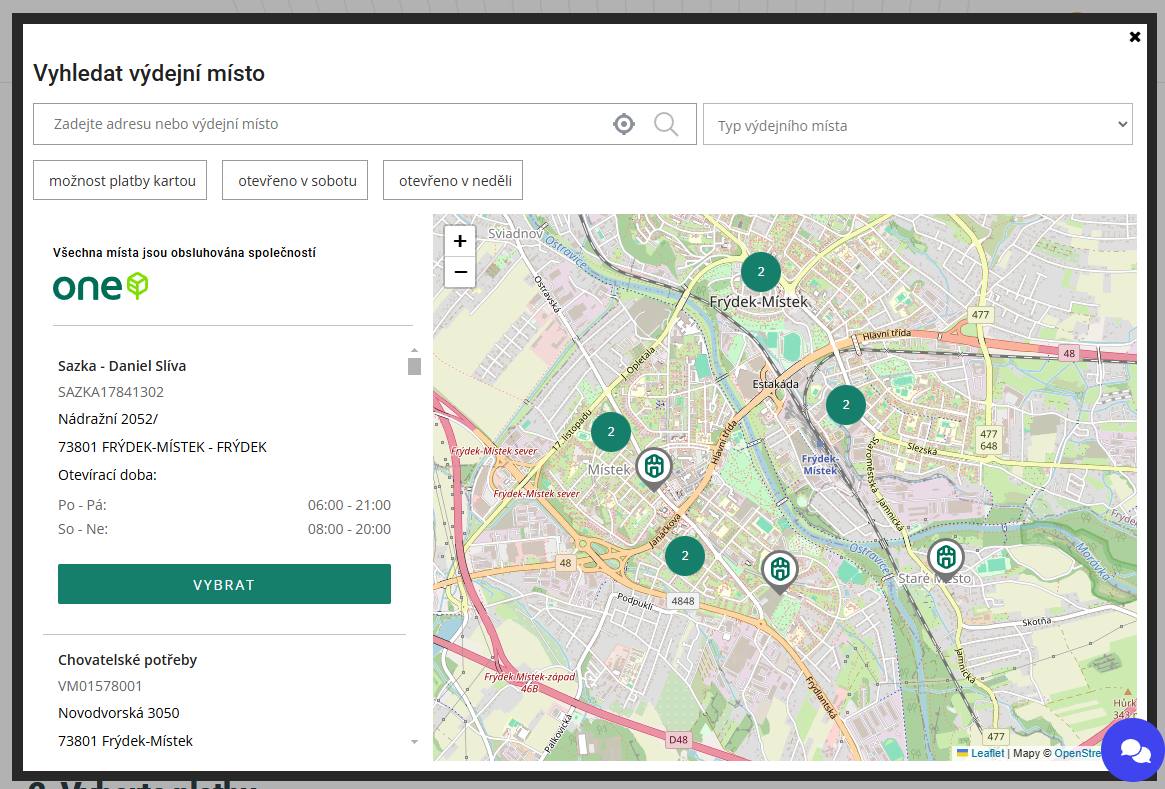
In the order process, when selecting One Point Shipment, customers will see the One by Allegro widget with a map.
You can create shipments of this carrier directly in the e-shop administration using Upgates Delivery (see help). The shipment data is read from the order and, after sending, is transferred to the carrier's system. Depending on the supported services, you can also print shipping labels, track the status of shipments, or order pickups.
Tracking URL:
Optimization for shipment
Optimization is performed by adding predefined fields. More info.
- Order export note #1 (export_shipment_note) - if the transport store does not have active branches, then the value from the Order export note #1 field is inserted into the transport_service column in the export CSV. With active branches, the value from the selected branch in the order is inserted into the transport_service column.
- Insurance (insurance_yn) - a field influencing if the insurance value of a shipment is generated to the CSV export for Uloženka by One by Allegro. This is a check box. If this field is not activated or is checked, then the insurance value will be inserted into the CSV export for Uloženka by One by Allegro. When the field is empty, no insurance will be generated.